INTRODUCING SCHOOLBRIDGE
SchoolBridge is a communication platform, available on the web and as an app, that seamlessly links caregivers, students, and the school. This will be used for all absence notifications, permission slips, school notices and more.
SchoolBridge will be the central sign in point for Cambridge High School, providing easy access for Students, Parents/Caregivers, and Staff.
Web Sign In
Go to our school’s homepage and click the SCHOOLBRIDGE button in the top right
Click on your account type: Parent/Caregiver, Student, or Staff
Students and and Staff can sign in using their Microsoft account
Parents & Caregivers can sign in using the email address you have registered with the school
Caregivers can sign in easily if your email address is registered with one of the following services
Apple (icould.com, mac.com, me.com)
Google (gmail.com or other google account)
Facebook
Microsoft (outlook.com, hotmail.com, live.com, msn.com)
Zoho (zoho.com, zohomail.com)
If your email address is not registered with one of the above services, you can use the Magic Link sign in option to receive an email that contains a link allowing you access.
WATCH: How to sign in
Parents and caregivers can use all of the following features on SchoolBridge:
Absence reporting
Alert messages
Permission slips and other forms
School Calendar
News and information
Easy access to the KAMAR portal
Link to your Kindo account
For 2026 all absences and leave passes need to be submitted through SchoolBridge.
Reporting an absence now takes just a few moments. Please follow the steps below:
Log in to SchoolBridge
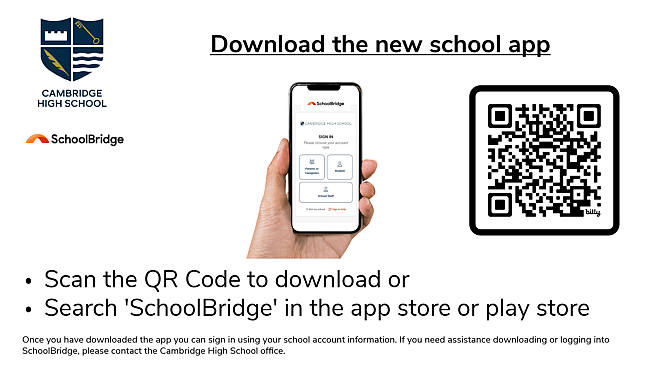
Download and then open the SchoolBridge app on your phone
Or log in via the link on the Cambridge High School website.
Select “Report Absence”
Once logged in, simply tap the Report Absence button on the home screen.
Choose the Type of Absence
Select the most accurate reason for your child’s absence from the list provided.
Enter the Dates
Select the first day your student will be absent
Select the end date of the absence
(SchoolBridge allows you to submit up to five days at a time)
Provide a Reason
Enter a brief explanation for the absence so our attendance team has the correct information.
Submit Absence.
Tap Submit Absence.
You can also view past notifications by opening your Absence Report.
Need Help Getting Started?
If you need assistance downloading or logging into SchoolBridge, please contact the Cambridge High School office. We are happy to help support you in setting up the app.